
List Of CLI Commands Before Firmware 1.15
? or help
Shows a list of commands with a brief description and the firmware version introduced. A command followed by ? or help will display more details.
- help – print list of commands
- ? – enter
<command> ?for more help - all – print out all instructions
- screen – set screen to configure
- display – set display to configure
- driver – set the driver for screen
- invert – invert display colors
- mirror – mirror display
- rotate – rotate display 90 degrees
- flip – rotate display 180 degrees
- mode – choose what each screen displays
- split – configure split-screen panes (1.14)
- enable – enable screens to scroll through
- inst – select instruments and locations
- mfd – MFD layout
- layout – spacing for steam gauges
- scale – scale steam gauges
- zoom – map zoom level
- logo – set the boot screen logo
- xoffset – move image on X axis for steam gauges
- yoffset – move image on Y axis for steam gauges
- drawdelay – delay after drawing screen
- input – select source of data input: m/v/s/p/i/r
- uart – select UART speed to communicate with flight controller
- units – set units
- bootdelay – show boot screens for this long
- rpm – set max RPM
- amps – set max amps on amp gauges
- altitude – set altitude type
- airspeed – set airspeed scale
- glideslope – set glide slope for ILS approaches
- pitot – use pitot for airspeed
- baro – use baro for altitude
- vspeeds – display current V-speeds
- hsirc – radio channel for adjusting HSI
- buttonsrc – radio channel for buttons
- gear – radio channel for gear indicator
- flaps – radio channel for flap indicator
- led – board LED on/off
- navled – alternate LED function
- map – display map data waypoints
- home – set home location
- airport – set airports for map
- waypoint – set waypoints for map
- runway – set runways for map
- loadFcWaypoints – load waypoints saved in flight controller
- hidegps – hide GPS coordinates
- onmap – display planes on map
- diagrampopup – show airport diagram after waypoint/runway selection (1.14)
- planes – sim, ADS-B, ESP32-radar, or formation flight
- bandit – set speed and turn rate of bandit aircraft
- sim – turn simulator on/off
- capture – capture bitmap of current screen
- dump – dump settings to copy/paste
- version – list version info
- settings – display current settings
- reboot – reboot the module without saving
- save – save settings
all
Prints out all CLI instructions.
screen
Selects the screen to configure. Several commands change settings only for the selected screen.
screen 2
display
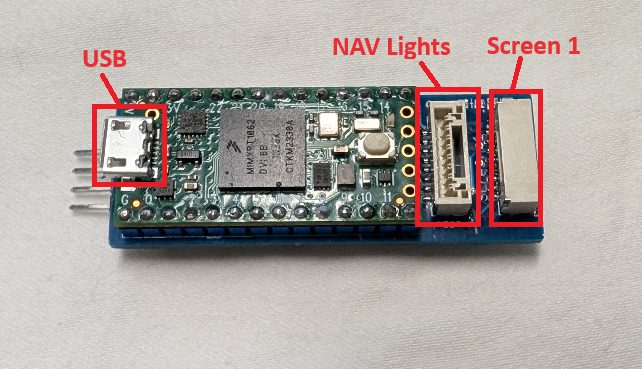
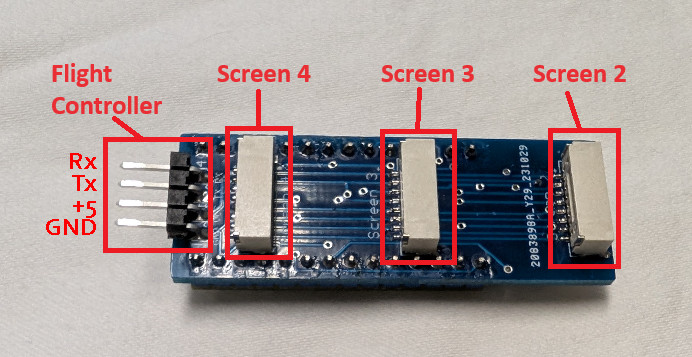
display is another command for selecting the display to configure.
display 2
driver
Changes the display driver and resolution for the selected screen. If a screen is blank, white, shifted, or drawn incorrectly, select the driver that matches the display size and resolution.
Change driver/resolution for selected screen

0) None
1) ST7789  240x240      - 1.54 inch
2) ST7789  280x240      - 1.69 inch
3) ST7789  320x240      - 2.0, 2.4, 2.8, 3.2 inch
4) ILI9341 320x240      - 2.2, 2.8 inch
5) ILI9488 480x320      - 3.5, 4.0 inch
6) ST7735  128x128      - 0.85 inch
7) ST7735  160x80       - 0.96 inch
8) ST7789  320x170(172) - 1.47, 1.9 inch
9) GC9A01A 240x240      - 1.28 inch round
10) GC9D01N 160x160     - 0.71 inch round
11) ST7789  284x76      - 2.25 inch
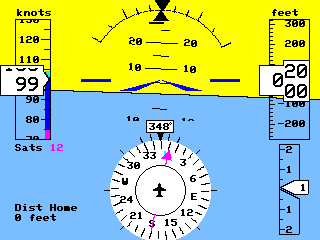
invert
Inverts the colors on the selected screen.
mirror
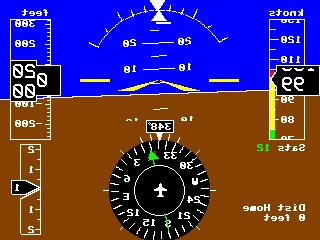
Mirrors the selected screen. You can also use mirror <screen num>.
rotate
Rotates the selected screen 90 degrees. You can also use rotate <screen num>.
flip
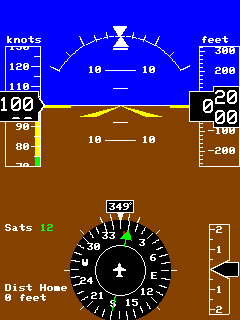
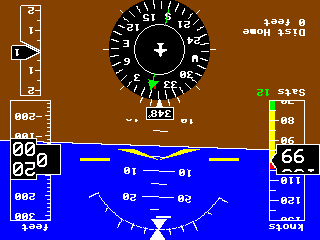
Flips the selected screen 180 degrees. You can also use flip <screen num>.
mode
Controls what the selected screen displays. See the description of modes.
mode              display the current mode for the current screen
mode <mode>       select mode for current screen

g) G500/G1000 - Primary flight display
m) Map - moving map
w) Weather radar
a) Airplane radar
p) Airline Primary Flight Display
f) Flight Management Computer
r) Radio Stack. Follow with 0, 1, or 2 to select different stacks
h) Heads Up Display
u) Multifunction Display
d) Airport Diagram
s) Split Screen showing configured left/top and right/bottom modes
i) Flight Instruments / Steam gauges
+) Next mode
-) Previous mode
split (1.14)
Configures the left/top and right/bottom panes for split-screen mode on the current screen.
split
split <left/top> <right/bottom>

Use normal mode letters. For instruments, append the page letter: ia, ib, ic.

Example:
split g m
enable (1.03)
Enables the modes that can be scrolled through on a screen. This is a per-screen setting.
enable gmwapfrhudsi   add screens
enable -gmwapfrhudsi  remove screens
enable all        add all
enable -all       remove all

Use mode ? to see descriptions of the available modes.

Example:
enable gmi

screen 1 modes enabled: gmwapfrhudsi
+g) G1000
+m) Map
+w) Weather Radar
+a) Aircraft Radar
+p) PFD
+f) FMC
+r) Radio Stack
+h) HUD
+u) MFD
+d) Airport Diagram
+s) Split
+i) Instruments
inst
Sets the instrument layout for steam gauges. See Instrument Descriptions.
Layout positions start in the upper left and move right, then down.

1 2 3     1 2     1 2
4 5 6     3 4     3 4
                    5 6

Example:
inst 1 2 3 4 5 6 - standard 6 pack
inst b 1 2 3 4 5 6 - set instruments for 2nd steam screen

-1 - end of instruments
0  - empty
1  - airspeed
2  - attitude
3  - altimeter
4  - turn coordinator
5  - directional gyro
6  - VSI
7  - airspeed alt
8  - attitude electric
9  - HSI
10 - RMI
11 - VOR
12 - Tachometer single/left
13 - Tachometer right
14 - Tachometer twin
15 - Manifold single/left (motor RC signal)
16 - Manifold right
17 - Manifold twin
18 - Fuel flow / amps
19 - Weather Radar
20 - Aircraft Radar
21 - Compass
22 - Fuel
23 - RAF Airspeed
24 - RAF Attitude
25 - RAF VSI
26 - RAF Altimeter
27 - RAF Compass
28 - RAF Turn/Bank
29 - Gear
30 - Flaps
mfd (1.09)
Sets the MFD gauge positions.
MFD gauge positions

1 2
3 4

0 - empty
1 - RPM
2 - Manifold Pressure
3 - Fuel Flow / Amps
4 - Fuel Gauge
5 - Horizontal Graph
6 - Vertical Graph
layout (1.02)
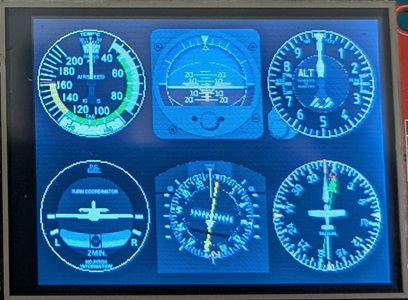
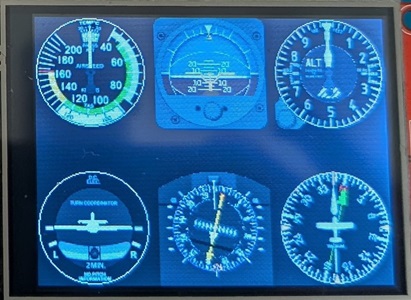
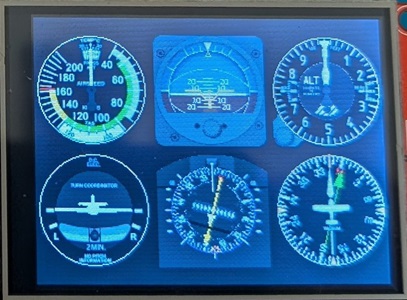
Sets spacing for instrument / steam gauges.
layout <p/s/c>
p - proportional: screen divided into segments and instrument placed in center of each
s - spread: instruments spread as far apart as possible
c - centered: instruments grouped into center of screen
scale (1.04)
Scales instruments on screen. Screens that normally display 3 or fewer instruments will scale them down to fit more. Screens that normally display 4 or more will scale them up to only display one.
zoom (1.12)
Sets the map zoom level on an individual screen.
+ zoom in
- zoom out
a auto zoom
logo (1.03)
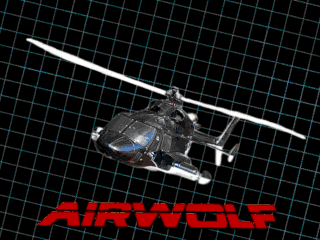
Sets the boot screen logo. Logos are automatically set based on the mode, but they can be changed.
f) fpvtoys
g) garmin
a) airwolf
c) airwolf with copter
b) boeing
r) airbus





xoffset (1.02)
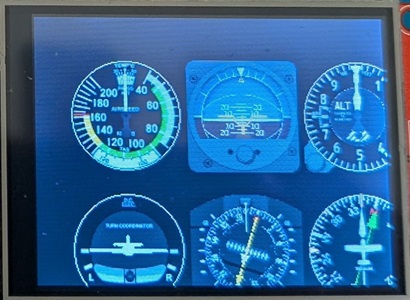
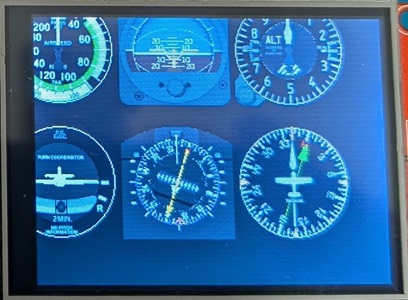
Sets the screen offset on the X axis for steam gauges. Use +/- 127 pixels.
yoffset (1.02)
Sets the screen offset on the Y axis for steam gauges. Use +/- 127 pixels.
drawdelay (1.12)
Sets a delay in milliseconds after drawing a screen. With simultaneous processing and drawing, there is normally no delay between screens. Some screens are slower to release their select pin, causing part of the next screen to appear at the top of the display. Adding a delay of 3-5 ms should fix drawing. This is usually seen only on 4 inch displays.
input (1.05)
Selects the source of flight data. See the input description for more detail.
input <m/v/p/i/s/r>
m MSP
v MAVLink
p SmartPort
i Inverted SmartPort
s SBUS
r R/C
uart (1.10)
Sets the UART speed used to communicate with the flight controller when using MSP or MAVLink.
0) 115200*
1) 57600
2) 230400
3) 460800
4) 921600
5) 1000000
6) 1500000
* selected
units
units <f/m/c> sets units to feet/knots/nautical miles, meters/kilometers, or combo metric with altitude in feet.
bootdelay (1.10)
Sets how long, in seconds, to show the boot screens.
bootdelay <seconds>
rpm
Sets the max RPM displayed on the tachometer in 1000 units. For example, 30 = 30,000 RPM.
amps (1.09)
Sets the max amps displayed on amp gauges.
altitude
Sets altitude type: a for AGL or m for MSL. MSL is only available for GPS.
airspeed (1.06)
Sets the scale factor for displaying airspeed. For example, 200 will display 200 knots when reading 100 knots from the flight controller.
glideslope
Sets the glide slope angle for approaches.
pitot (1.01)
pitot 0/1
Use pitot for airspeed
baro (1.01)
baro 0/1
Use baro for altitude
vspeeds
vspeeds <vflap> <vnorm> <vcaut> <vne> - set V-speeds in knots
example: vspeeds 20 40 70 90
hsirc
hsirc <channel> - RC analog channel used to set HSI course
hsirc 0         - turn off
buttonsrc
Sets the RC channel used to simulate button presses and light settings. See the instructions for setting up radio buttons.
buttonsrc <channel> - RC channel used to simulate button presses and light settings
buttonsrc 0         - turn off

900 uS  - nav lights off
1000 uS - position/beacon lights on
1500 uS - + strobes
2000 uS - + landing lights
1100 uS - select previous VOR/airport
1200 uS - select previous display
1300 uS - change mode
1400 uS - map zoom in
1600 uS - map zoom out
1700 uS - change mode
1800 uS - select next display
1900 uS - select next VOR/airport
gear (1.06)
gear <channel> - RC analog channel used for gear indicator
Use -channel to reverse operation
gear 0 - turn off
flaps (1.08)
flaps <channel> - RC analog channel used for flap indicator
Use -channel to reverse operation
flaps 0 - turn off
led
Sets the board LED on or off.
navled (1.08)
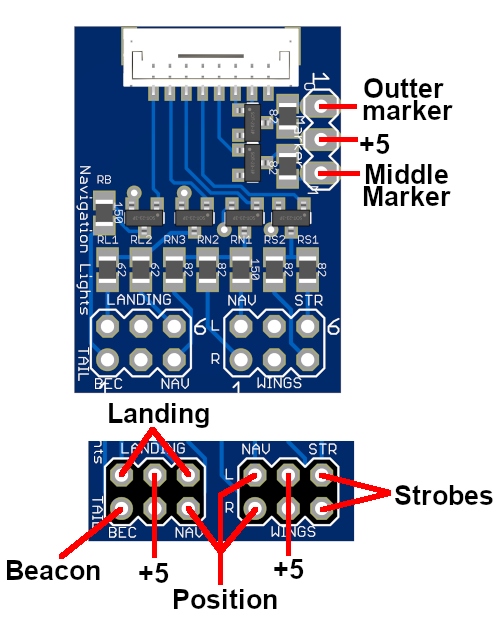
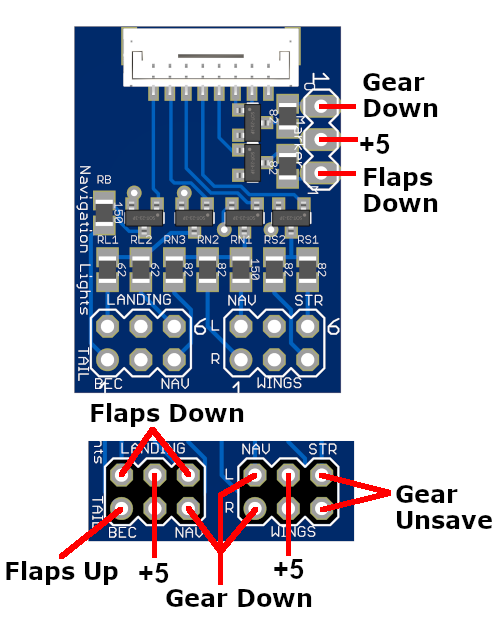
Sets the alternate function for LEDs on the nav light board.
Nav LEDs enabled:
+ selects nav light
- selects alternate function

-b) Beacon / Flaps up
-l) Landing / Flaps down
-n) Nav / Gear down
-s) Strobe / Gear unsafe
-m) Middle Marker / Flaps down
-o) Outer Marker / Gear down
Standard Functions
Alternate Functions
map
Displays, saves, clears, or loads waypoint, airport, and runway map data.
map save    saves current map settings
map clear   clears all map data
map default loads default airports and runways for the Denver area
map <loc>   loads map data for some cities

Currently supports:
den - Denver
sfo - San Francisco
las - Las Vegas

After setting map data, enter map save, then reboot to load the new map.
home
Sets the home location for power on and simulator. This can be used to fly around and verify other waypoints.
home <lat> <lon>
home set - set current location as home
airport
Sets map data for airports, including real airports and model airports. See the instructions for adding airports.
Real airports are designated as B, C, D, or U and will display their airspace on the map.
Model airports are designated with M.

Draws rings to display 400 ft, 100 ft, and 0 ft ceiling limits.
The 100 ft and 0 ft rings are approximate locations. Every airport is unique.

To set airport data:
<name> <lat> <lon> <options>

<name>    airport identifier, 4 letter identifier
<lat>     latitude, degree.dddddd up to 6 decimal places
<lon>     longitude, same format, use - for W degrees
<options> M model airport, D Class D, C Class C, B Class B, U uncontrolled

Example:
KBJC 39.908775 -105.117157 D

Delete entry:
airport <entry #> del
waypoint
Sets map data for waypoints and VORs. See the instructions for adding waypoints.
Waypoints are designated with W.
VORs are designated with V.

Waypoint draws a triangle.
VOR draws a VOR symbol with a compass rose.

To set waypoint data:
<name> <lat> <lon> <options>

<name>    waypoint/VOR identifier, 4 letter identifier
<lat>     latitude, degree.dddddd up to 6 decimal places
<lon>     longitude, same format, use - for W degrees
<options> V) VOR, otherwise default waypoint

Example:
DEN 39.812524 -104.660750 V

Delete entry:
waypoint <entry #> del
runway (updated with V1.12)
Sets map data for runways. These can be real or model runways. See the instructions for adding runways.
To set runway data, use GPS coordinates from the start and end of the runway.
Use degree.dddddd up to 6 decimal places. Use - for W degrees.

<airport> <lat_start> <lon_start> <lat_end> <lon_end> <width> <options>

<airport>   airport identifier, 4 letter identifier
<lat_start> latitude start
<lon_start> longitude start
<lat_end>   latitude end
<lon_end>   longitude end
<width>     width of runway in feet
<options>   L)eft, R)ight, or C)enter runway

Only the letter from the start of the runway needs to be entered. The opposite letter is automatically designated.

Delete entry:
runway <entry> del

Example:
KBJC 39.901382 -105.101927 39.915299 -105.128423 100 R
loadFcWaypoints (1.03)
Loads navigation waypoints from the flight controller at boot.
hidegps
Hides GPS coordinates from the screen.
hidegps <on/off>
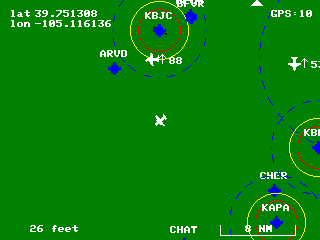
onmap (1.12)
Displays other planes on the moving map. It shows direction and altitude difference in hundreds of feet.
diagrampopup (1.14)
Sets how long, in seconds, to temporarily show the airport diagram on map screens after waypoint or runway selection. Use 0 to disable the popup.
diagrampopup <seconds>
planes (1.12)
Sets the type of plane displayed on radar and map.
s simulated
a ADS-B, requires receiver
e ESP32-radar / Formation Flight, requires hardware
bandit (1.12)
Sets the speed and turn rate of bandit aircraft.
<entry #> <speed in knots> <turn rate degree/sec>

Example:
bandit 1 100 12

Set speed to 0 to disable plane.
bandit clear   clear all
bandit default set to default
sim
Enables the simulator. The flight controller must be connected to get MSP data out of it. It gets pitch, roll, and yaw data from the flight controller, simulates airspeed and altitude, and changes based on pitch. If the radio is connected, it will get airspeed from throttle. Direction can be changed with yaw. Pitch and roll can be changed with elevator and aileron, and altitude will change with pitch. Use it to fly around the map and check map data.
sim <on/off>
capture (1.07)
Outputs a Python file that will generate a .data file in RGB565. The file can be opened in Gimp or Photoshop. Select RGB565 Little Endian format and set the width equal to the width of the captured screen.
dump
Dumps all settings so they can be copied and pasted.
version
Displays version information.
settings
Displays the current controller settings, screen configuration, input source, firmware version, and map data version.
settings reset   reset controller settings but keep current display setup
settings default reset all controller settings, including display drivers
Display        invert/mirror
#  driver    res       | rot mode            instrument layout
------------------------------------------------------------------
1  4 ILI9341 320x240     1  g G1000   a{1,2,3,4,5,6} b{7,8,9,10,11,12}
2  2 ST7789  280x240 i   3  d Airport Diagram   a{1,2,3,4} b{5,6,7,8} c{3,4,9,6}
3  0 None
4  0 None

Input: m) MSP
VSpeeds: VFlap VF_End VNorm VCaut VNe
         10    40     25    75    101
Units: f) Feet/Miles
Max RPM: 30 (30,000)
Airspeed scale: 100%
Board LED: on
Glide slope: 3.00
HSI channel: 10
Gear channel: 6
Switch channel: 8
Airspeed source: GPS
Altitude source: GPS
Load fc waypoints: off
Flight Controller: iNav
Simulator: off

Firmware Version 1.07
Build Date & Time Feb 17 2025 22:31:17
Settings:0107 Map data:0100
Sold by fpvtoys.net
reboot
Reboots the module without saving unsaved changes.
save
Saves settings so they are kept after power is removed.