
Display Modes
There are several display modes you can assign to each cockpit display. Modes can be cycled through with the radio while in flight, so you can switch between flight instruments, navigation, radar, and layout views without landing.
- G1000
- Map
- Weather Radar
- Aircraft Radar
- Primary Flight Display
- Multi-Function Display
- Airport Diagram
- Split Screen
- Flight Management Computer
- Radio Stack
- Heads-Up Display
- Instruments
Each mode is designed to scale to different screen sizes and to fit different aircraft styles, from simple gauge panels to full navigation and glass-cockpit layouts.
Quick Mode Guide
| Mode | Command | Description |
|---|---|---|
| G1000 | mode g | Primary flight display with attitude, airspeed, altitude, heading, and navigation information. |
| Map | mode m | Moving map showing airports, runways, waypoints, traffic, and navigation data. |
| Weather Radar | mode w | Displays simulated weather radar information. |
| Aircraft Radar | mode a | Displays nearby aircraft, ADS-B targets, formation flight targets, or simulated traffic. |
| PFD | mode p | Airliner-style primary flight display. |
| MFD | mode u | Multi-function display with flight, navigation, engine, and system information. |
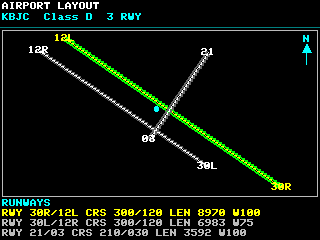
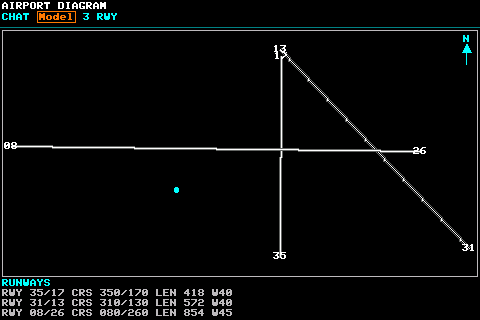
| Airport Diagram | mode d | Selected airport/runway/waypoint diagram. |
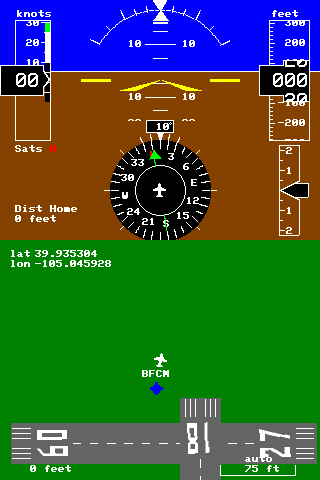
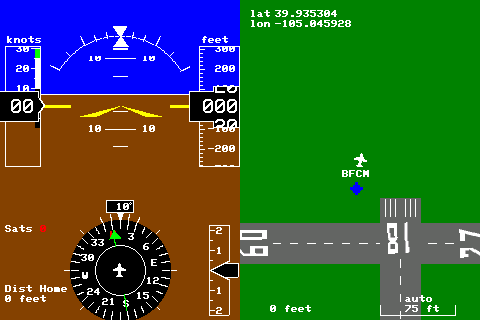
| Split Screen | mode s | Configurable split view with separate left/top and right/bottom modes. |
| FMC | mode f | Flight management computer interface. |
| Radio Stack | mode r | Static radio-stack layouts. |
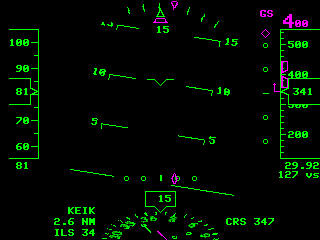
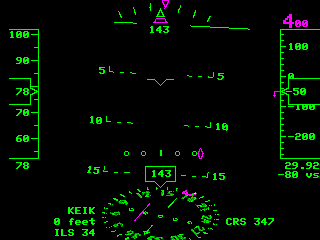
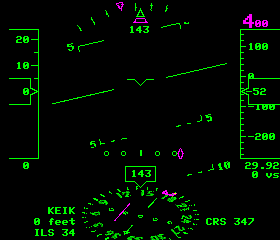
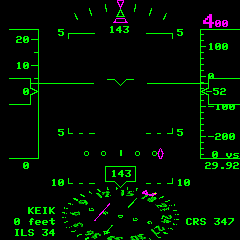
| HUD | mode h | Heads-up display for FPV flying. |
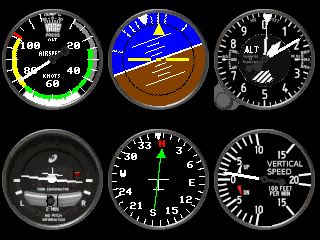
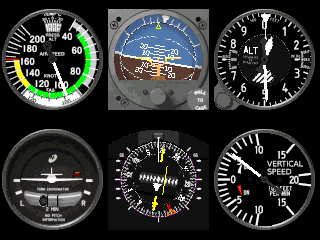
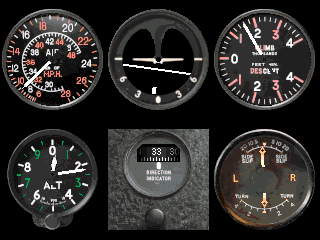
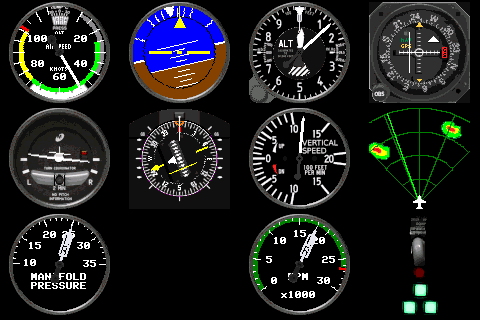
| Steam Gauges / Instruments | mode i | Traditional round flight instruments. |
G1000
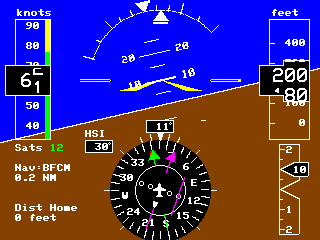
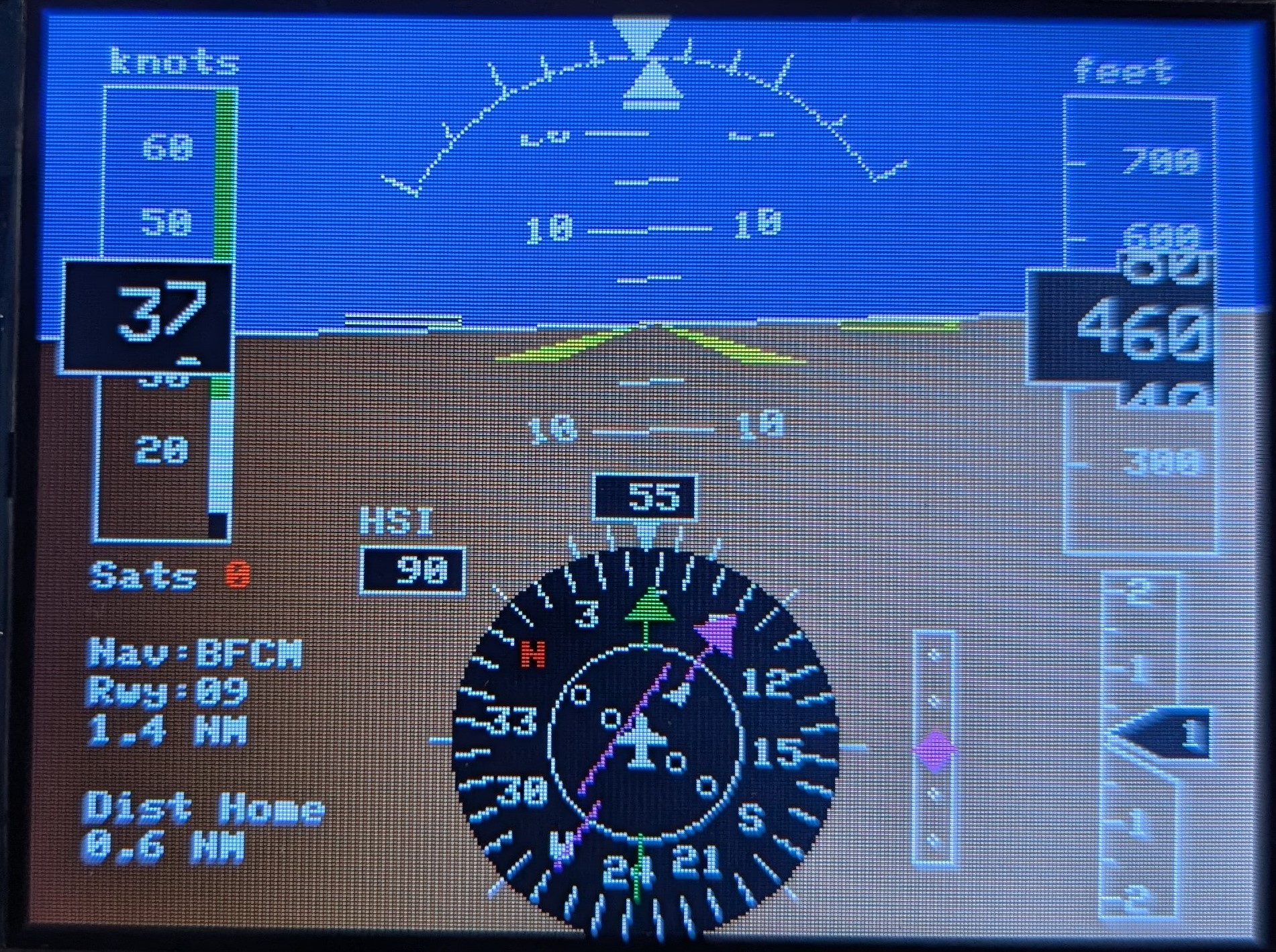
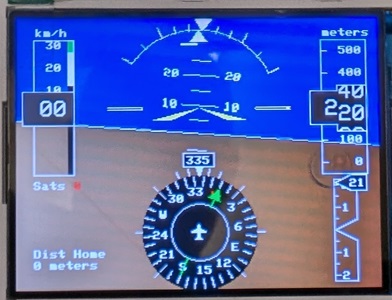
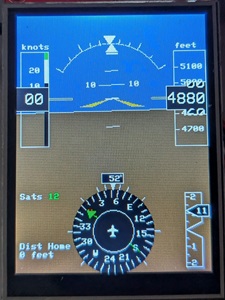
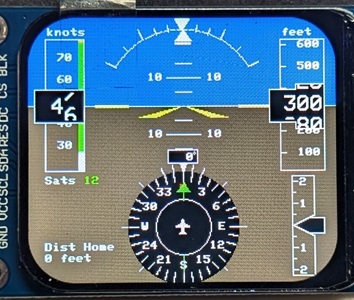
Select with mode g. This mode displays a G1000-style primary flight display and automatically adjusts the item layout to match the screen resolution. The green arrow points home to the location where the flight controller was armed. The magenta arrow is part of the navigation system and works with waypoints selected from the radio. The course indicator can also be adjusted with a knob or radio input.
Map
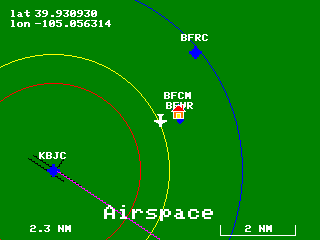
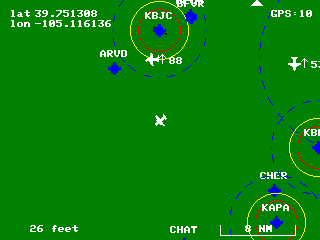
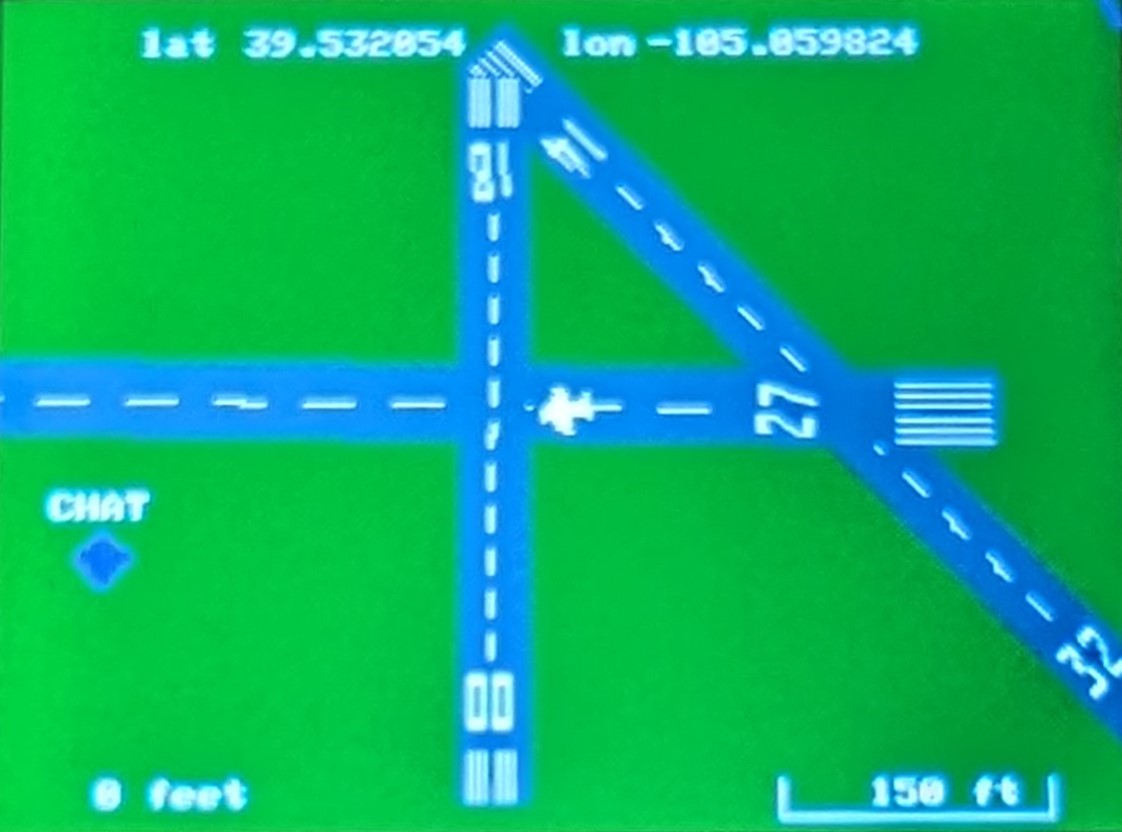
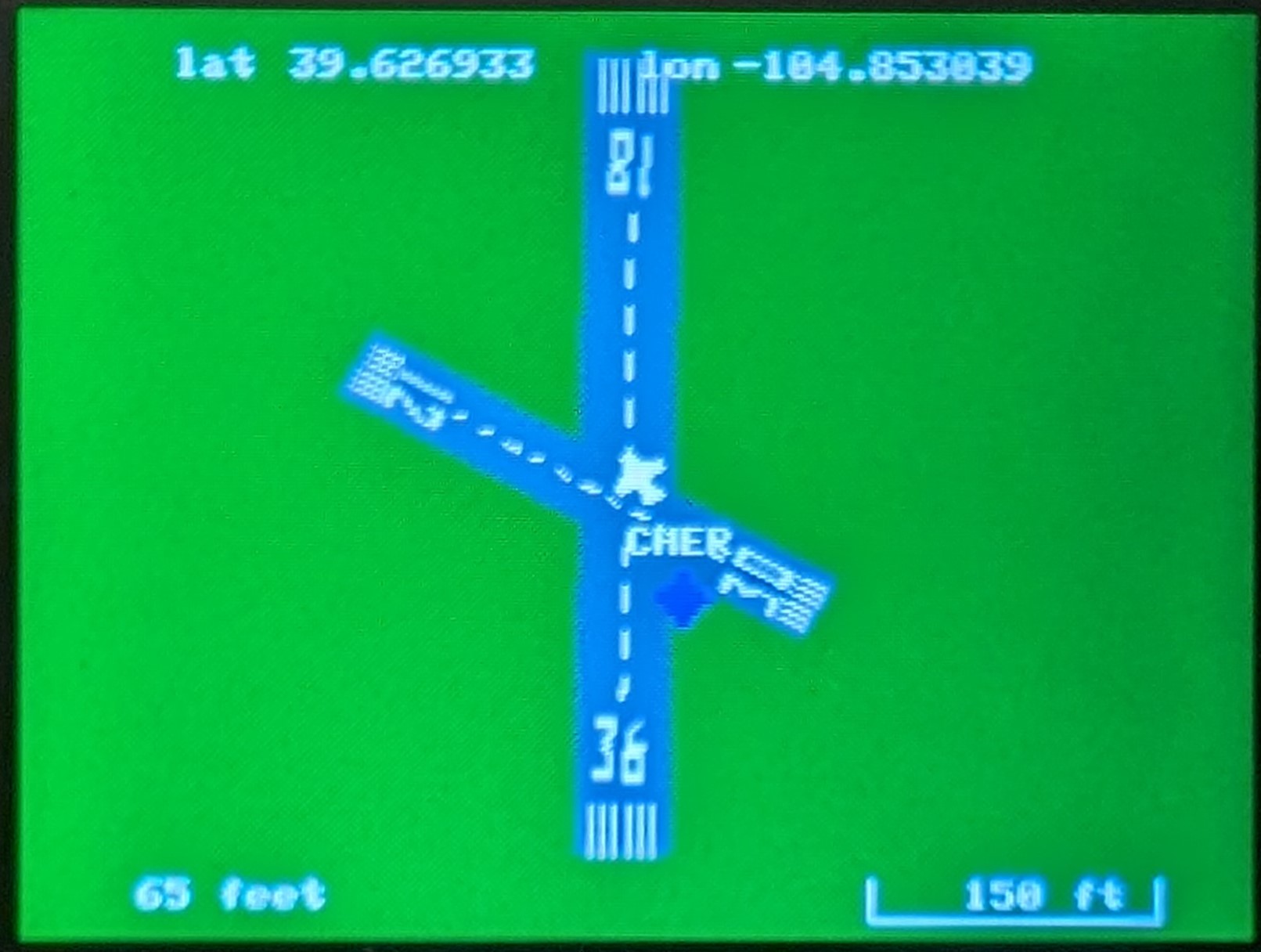
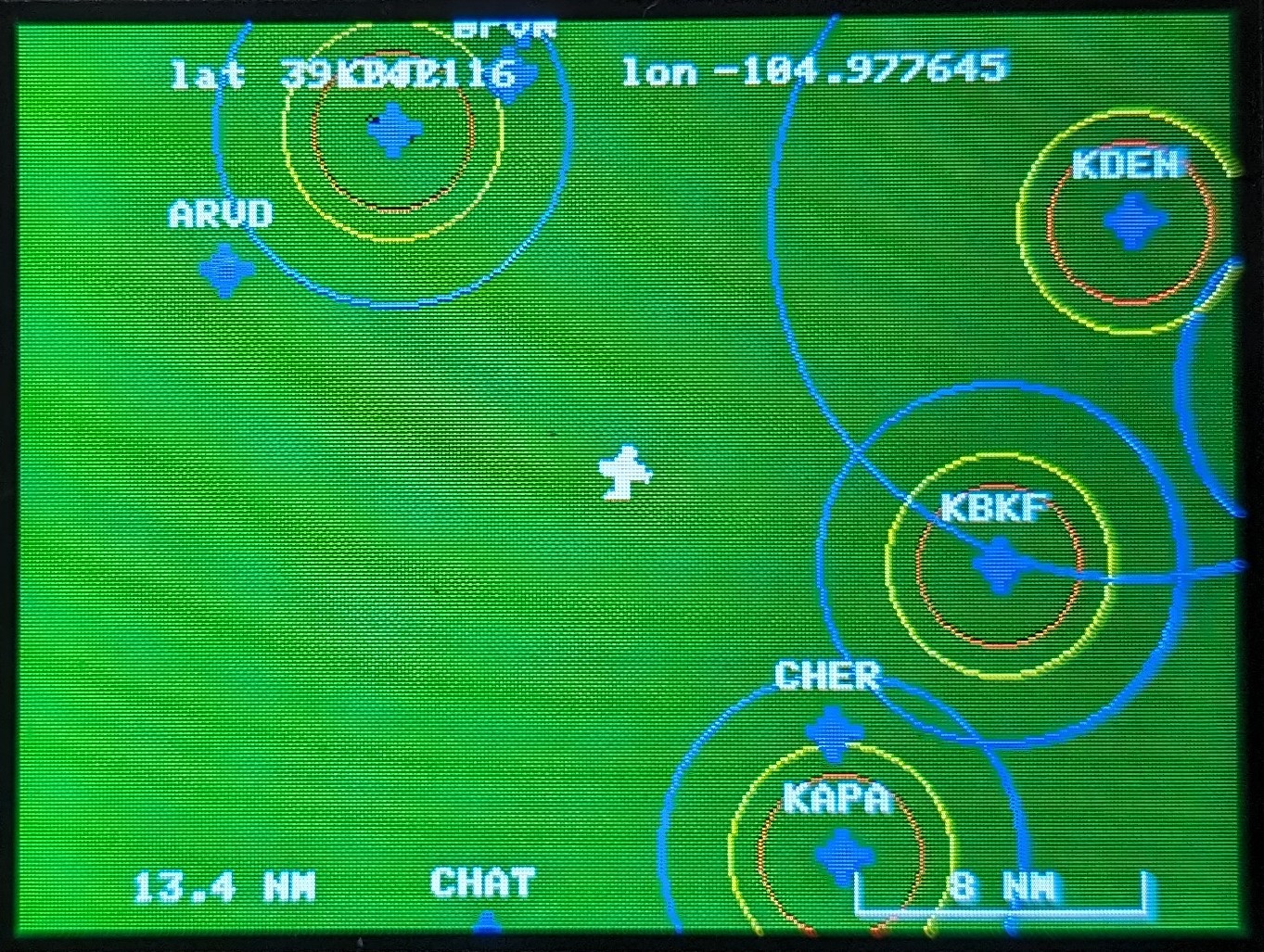
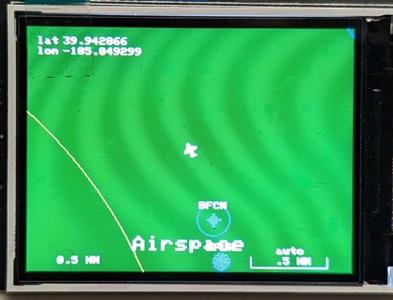
Select with mode m. This mode displays the moving map. Map data is entered through the CLI, and the map area automatically scales to the screen resolution. During flight, you can zoom in and out with the radio. The map can also show other aircraft, including ADS-B traffic, formation flight, or simulated aircraft, with position, direction, and altitude difference.
Weather Radar
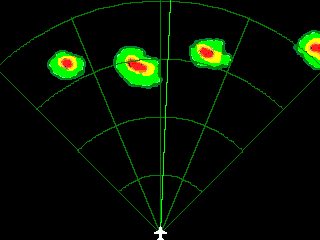
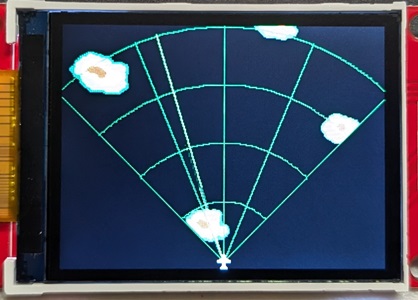
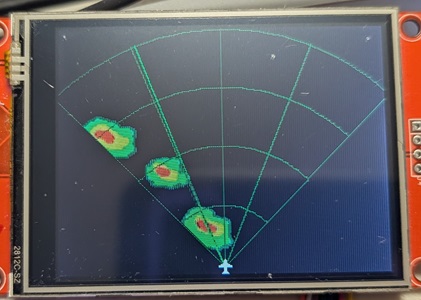
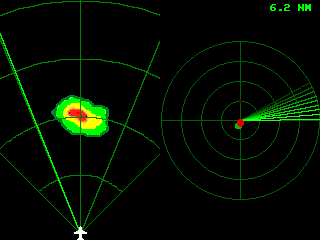
Select with mode w. This mode displays simulated weather radar. Storm cells move based on direction and speed.
Aircraft Radar
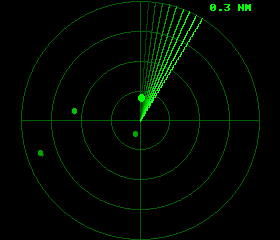
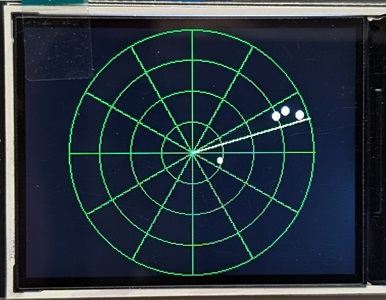
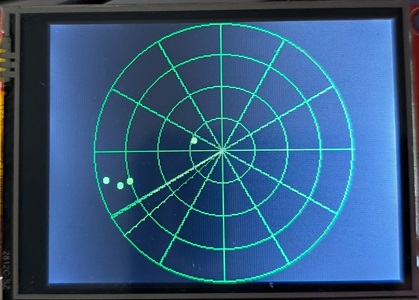
Select with mode a. This mode displays aircraft on a radar-style screen and supports three sources of traffic. Traffic can come from ESP32-INAV-Radar, Formation Flight, or ADS-B receiver data. It has also been tested with the ADSBee receiver. Simulated traffic can also be used and will pursue your aircraft.
Primary Flight Display
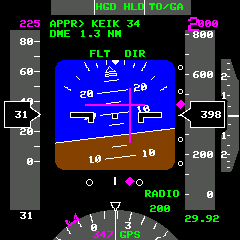
Select with mode p. This mode displays a fully functional Primary Flight Display similar to the kind used in airliners such as the 737 or A300.
Multi-Function Display
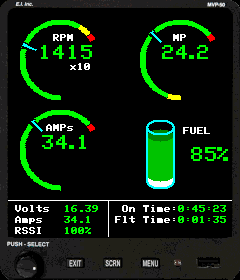
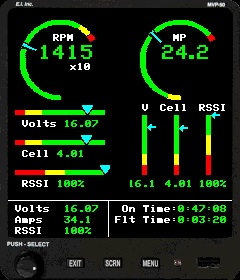
Select with mode u. This mode displays a configurable Multi-Function Display for flight data, navigation, and cockpit layouts.
Airport Diagram
Select with mode d. This mode displays a diagram of the selected airport/runway/waypoint from the map data. It can also be shown automatically as an airport diagram popup when a screen is using the moving map.
Split Screen
Select with mode s. This mode splits the screen in half and can show different modes on each side. By default it uses G1000 and Map, but the split command can set the left/top and right/bottom panes to other supported modes.
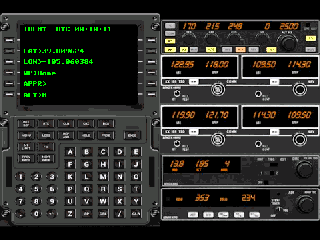
Flight Management Computer
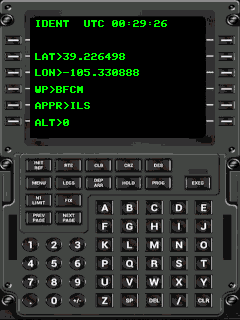
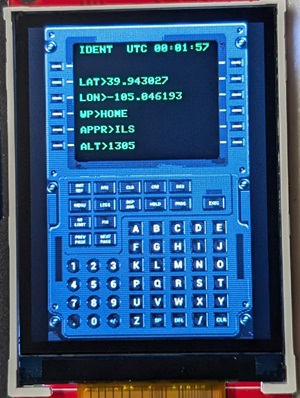
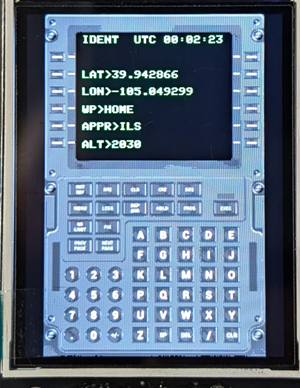
Select with mode f. This mode displays a flight management computer and uses flight-controller data for navigation and cockpit behavior.
Radio Stack
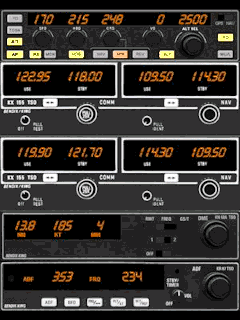
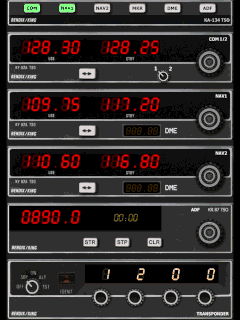
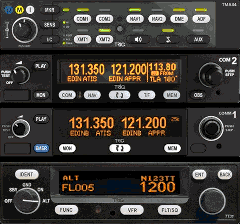
Select with mode r and choose from one of three radio-stack layouts. This mode displays a static radio stack with no active data.
Heads-Up Display
Select with mode h. This mode projects flight information onto a glass-style cockpit display. Use the mirror command to reverse the image when needed.
Instruments
Select with mode i. This mode displays between 1 and 12 instruments depending on screen resolution. Instrument descriptions are available here: Instrument descriptions. Sample panel layouts are completely configurable.
All modes can be configured through the CLI and controlled in flight through supported radio channels, giving you a flexible cockpit-display system that can be tailored to different aircraft and screen sizes.
Troubleshooting Guide.