
Single-point map setup
Airport & Waypoint Builder
Choose airport or waypoint, click one point on the map, then copy the command into the FPVtoys CLI.
If this message stays visible, check the browser console and API key restrictions.
How It Works
- 1. Find location
Zoom to the airport or waypoint location.
- 2. Click point
Click the exact point on the map, or paste decimal coordinates manually.
- 3. Fill fields
Choose airport or waypoint options.
- 4. Copy command
Paste the generated command into the FPVtoys CLI.
Adding Airports Manually
To enter an airport, you will need the GPS coordinates in decimal degrees format.
Add a Model Airport
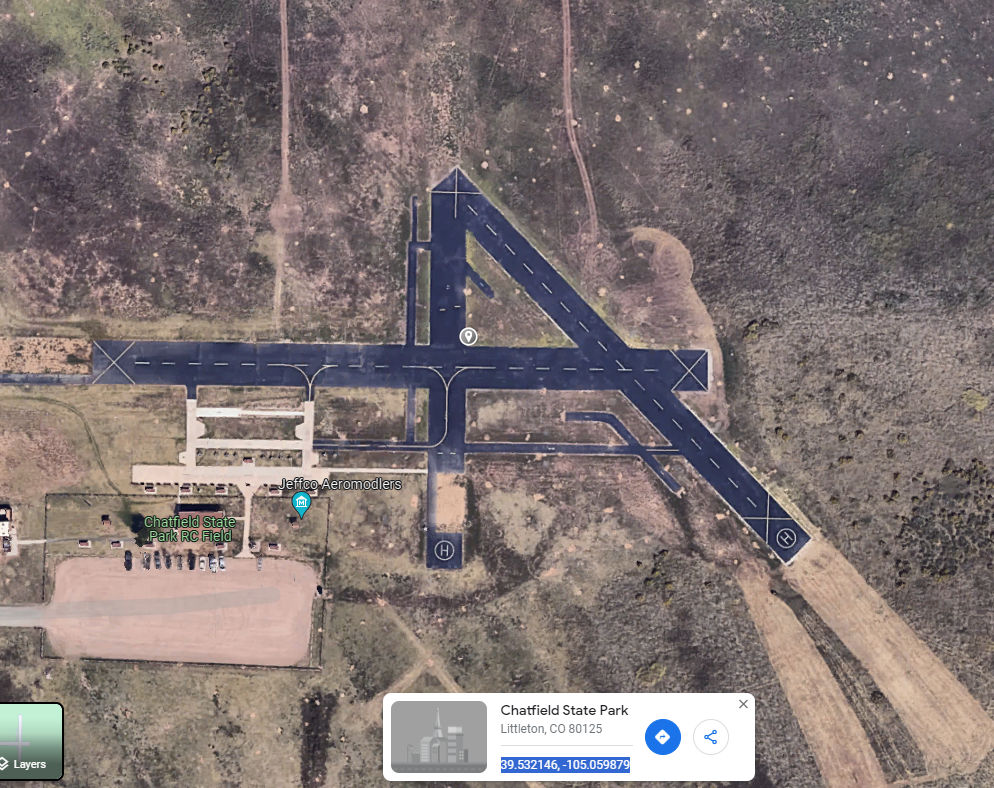
To get coordinates, go to Google Maps and click on the map where you want the airport. The coordinates will show at the bottom in the proper format to copy.
Here is an example of a model airport. The coordinates are:
39.532146, -105.059879
To enter this airport into the CLI, use the following command. In the CLI, you can separate parameters with spaces or commas.
airport CHAT 39.532146, -105.059879 M
Add a Real Airport
To add a real airport and get the airspace rings, go to SkyVector and find the airport you are looking for.
Right-click on the airport and select the airport name from the top option.
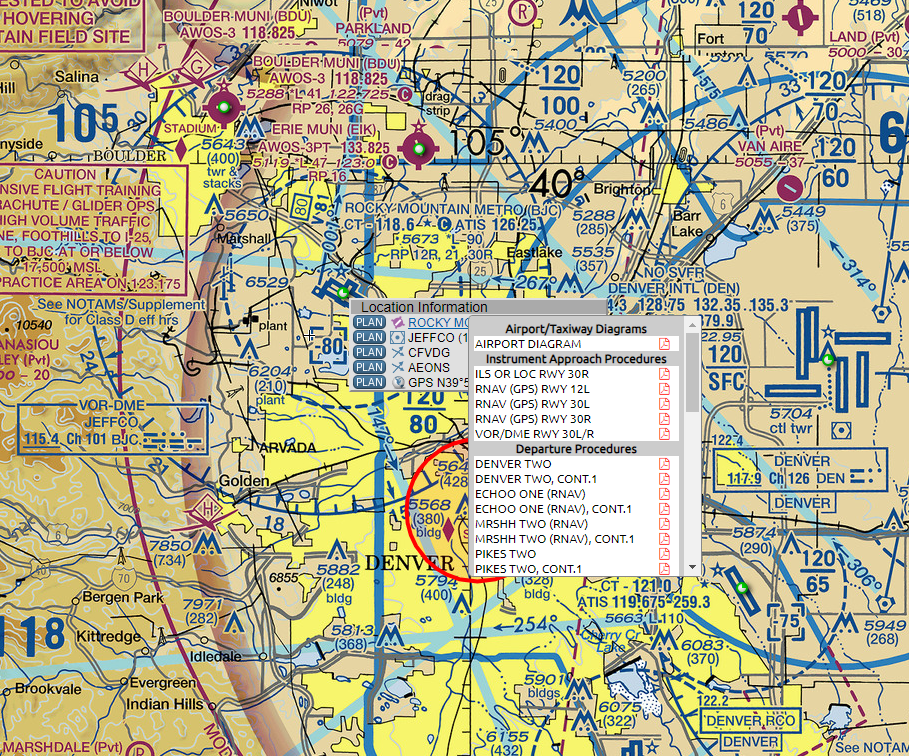
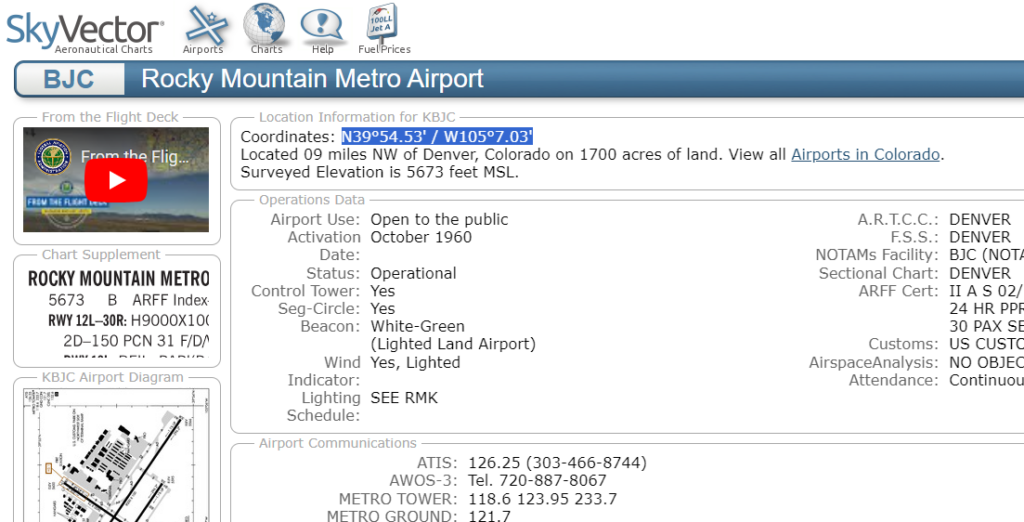
Select and copy the coordinates at the top.
Open Google Maps, paste the coordinates into the search box, and remove the slash.
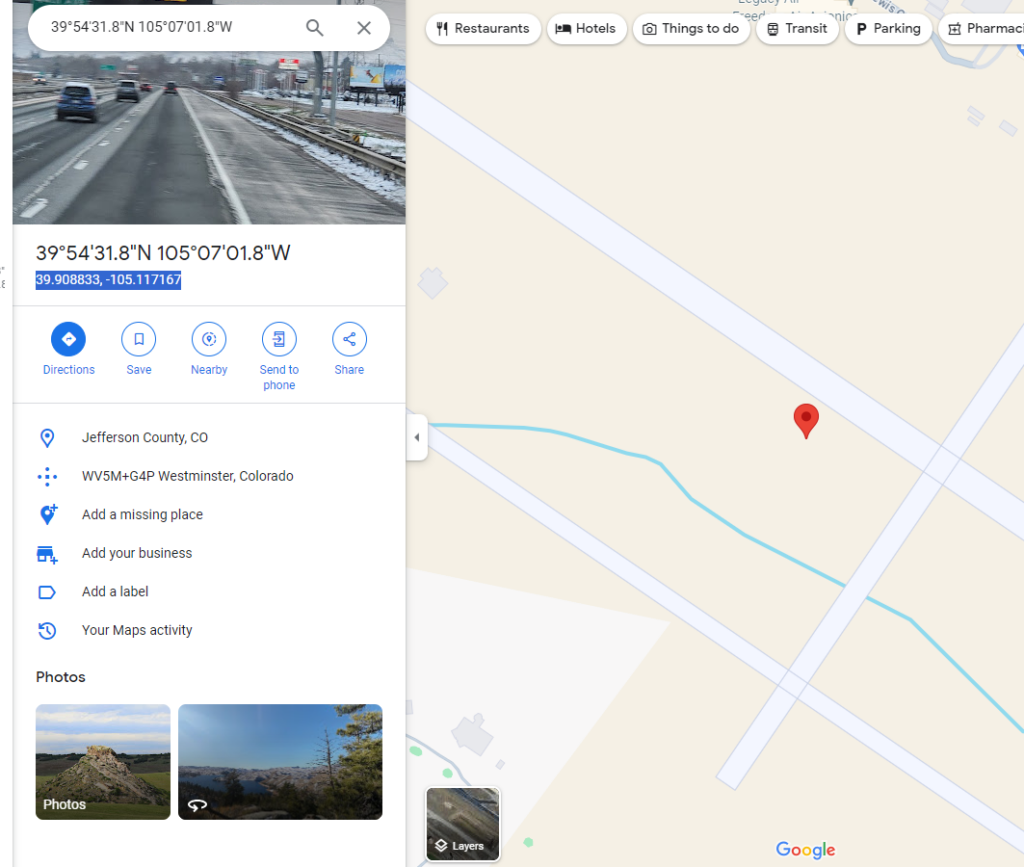
To enter this airport into the CLI, use:
airport KBJC 39.908833, -105.117167 D
Adding Waypoints Manually
To enter a waypoint, you will need the GPS coordinates in decimal degrees format. (Degree and decimal fraction)
To get coordinates, go to google maps and click on the map where you want the waypoint.
The coordinates will be shown at the bottom.
waypoint WPT1 39.532146, -105.059879