
Firmware Updates
Programming New Firmware
To update the firmware on the gauge controller, use the Teensy Loader from PJRC. Follow the instructions for the version of the loader you download.
- You should be able to upgrade to the newest firmware version and keep your existing settings.
- If you downgrade firmware, settings will be returned to default.
- If you are updating from a version older than 1.04, all settings will be reset to default.
- If you are running version 1.03 or older and want to keep your settings, update to 1.07 first, then update to the latest version.
Update Steps
- Download and install Teensy Loader.
- Plug the USB cable into the controller.
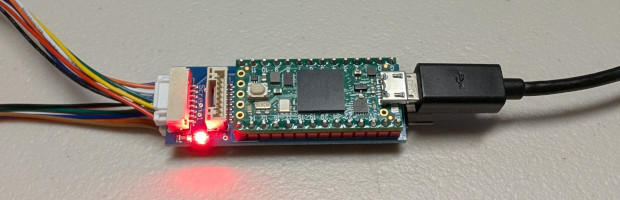
- Launch Teensy Loader.
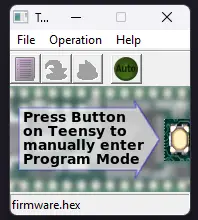
- Click the Auto button so it turns light green.
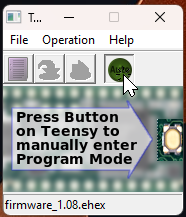
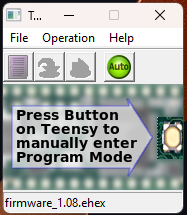
- Drag the new firmware file onto the Teensy Loader app.
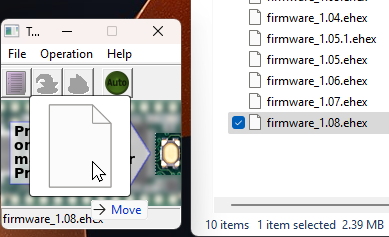
- Press the Program button on the Teensy board.
Recovery And Troubleshooting
If the controller is stuck, unresponsive, or needs settings recovery, use the Troubleshooting Guide. Full erase and restore instructions are here: Full Erase And Restore.
Firmware Releases
Click a version number to download that firmware file. The latest version is recommended.
Download note: If clicking a firmware link does not download the file, it may be blocked by browser or firewall settings. Try a different browser, or right-click the file name and choose Save link as. You may also need to tell the browser to keep the file.
- Added Airport Diagram mode for selected airport/runway/waypoint diagram.
- Added optional airport diagram popup after waypoint/runway selection.
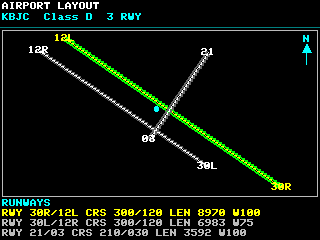
- Added configurable split screen: choose what appears in the left/top and right/bottom panes.
- Added support for a 2.25-inch ST7789 284×76 display.
- Added a new boot logo.
- Improved CLI restore/dump support, including split screen, diagram popup, fixed zoom, numeric logo restore, and map dump output.
- Improved CLI help text and command ordering.
- Added fixed numeric map zoom support in addition to auto/plus/minus zoom.
- Improved GPS coordinate handling across MAVLink, MSP, and SmartPort.
- Optimized SBUS channel conversion.
- Fixed ST7735 128×128 yellow-tab display rotation offsets.
- Added a setup menu for the optional keypad.
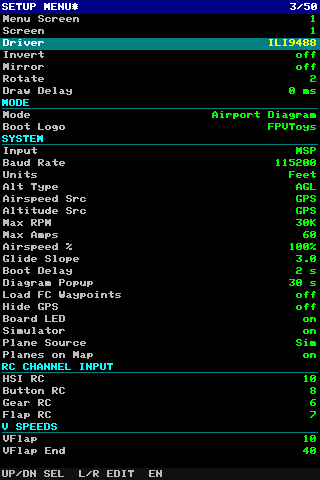
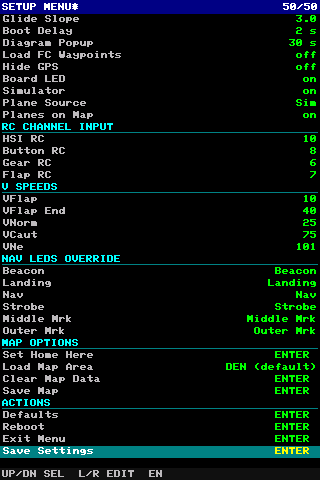
- Fixed a Rotorflight flight-controller protocol issue.
- Added the
hidegpsCLI command to hide GPS coordinates on supported screens. - Improved map zoom-out behavior for aircraft when map zoom is set to auto.
- Added zoom in/out support for aircraft radar.
- Improved radar graphics.
- Fixed a bug where the navpoint could be set on first arm.
Now supports ADS-B.
Using a compatible ADS-B receiver, the controller can now display real aircraft on the radar and map. This has been tested with the ADSBee 1090U receiver sold by Pants for Birds.
I also put together a setup that was on display at the ADSBee booth at Open Sauce. More information is available in the ADSBee July 2025 update.

- ESP32-radar and Formation Flight data are now supported, and planes can be displayed. This feature will be available in iNav 8.1/9.0.
- Other planes can now be displayed on the moving map. These can be ADS-B airplanes, ESP32-radar/Formation Flight planes, or simulated planes. They can also be disabled.
- Planes appear on the map at the proper location. The map shows each plane’s direction and altitude above or below your position in hundreds of feet.
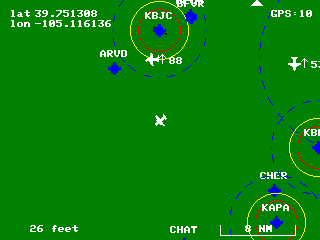
- In this screenshot, one plane is north of me and 8,800 feet above my altitude. Another plane is northeast and 5,300 feet above my position. There is another plane off screen farther northeast.
- Drawing and data processing are faster. Data is sent to the display while the next screen is being drawn in memory, so there is no gap between drawing to the displays.
- On the 4 inch screen, drawing can happen so fast that the select line may not fully release before a second screen begins drawing. If that happens, part of the second screen may appear at the top of the 4 inch screen. The new
drawdelaycommand lets you insert a small millisecond delay. Usually 3 or 4 ms is enough. - Runway entry has a new, easier format. It now only needs 2 GPS points and the runway width. Runway instructions are here. This is not compatible with the older runway format, so existing runway data will need to be reentered.
- Maps can now have the zoom level locked instead of using auto zoom. Zoom can be different on each screen. Radio control can still override the lock during flight.
- Declination is now automatically calculated from tables in the code, so runway numbers are calculated automatically.
- More code optimization and several bug fixes.
New or updated CLI commands:
zoom– change and lock map zoom level.drawdelay– delay in milliseconds after drawing a screen.planes– source of planes on map: simulated, ESP-radar, or ADS-B.bandit– set parameters for simulated planes.onmap– display planes on the map screen.airport– set airport data for map.runway– enter runway data using the updated format.home set– set current location to home.
Update note: If you are updating from a version older than 1.04, all settings will be reset to default. If you are running version 1.03 or older and want to keep your settings, update to 1.07 first, then update to the latest version.
- Fixed several MAVLink issues. Thanks to Philippe for testing the changes.
- Added an MSL or AGL altitude option. Some data sources may not provide both values, or may override the selected source if data is missing.
- Added different GPS status colors for no fix, 2D fix, and 3D fix on the G1000 screen.
- Added more information to the debug screen, selected with
mode d. - Code optimization.
- Added support for MavLink protocol.
- Stream MSP data while drawing to improve framerate.
- Added support for Rotorflight.
- Added smart planes to airplane radar. Planes can track, chase, and fire missiles.
- Started adding ADS-B receiver support to show real aircraft on radar.
Version 1.09
- Added Multi Function Display.
- Added Split Screen option. One half shows G1000 and the other half shows the map.
- Flap endpoints are dynamic. Sweep flaps through the entire range, then save.
- Added combo units: distance and speed are metric, altitude is in feet.
- Added delay option to display all boot screens for a set number of seconds.
Version 1.08
- Added Heads Up Display.
- Added flap gauge.
- Improved drawing speed.
- Added alternate functions to navigation light board with navled.
- Individual channels can show gear down, gear unsafe, flaps down, and flaps up.
Version 1.07
- Added 0.71 inch round screen.
- Added Primary Flight Display for airliners.
- Added Boeing and Airbus boot screens.
- Improved G1000.
- Improved instrument appearance and added new instrument fonts.
- Added radio stacks.
- Outside airport ring is dashed on the map.
- Added debug screen to see what is happening inside the controller.
- Minor fixes.
- Added screen capture. Outputs a Python file that generates a .data file in RGB565 Little Endian format. The file can be opened in Gimp by selecting RGB565 Little Endian and setting the width equal to the captured screen width.
Version 1.06
- Added WW2 RAF instruments.
- Added landing gear indicator.
- Made instruments look more authentic.
- Non-linear instruments now correctly calculate data.
- Added support for 1.47 inch screen.
- Sped up G1000 drawing.
- Rewrote simulator.
- Added debug screen.
- Airspeed scale is settable.
- LED flashes version at startup. Version 1.06 flashes 6 times.
- Fixed draw bug at 90 degrees on G1000.
- Scale option scales instruments down on small screens and up on large screens.
- Eliminated some duplicate instruments.
- Better support for alternate input modes: SBUS, SmartPort, and RC channels.
Version 1.05.1
- Fixed bug when using input settings besides MSP.
- Fixed rare issue where debug data was output on the serial port.
- Fixed ArduPilot MSP decoding.
- Added GC9A01A screen driver for circular screen.
- Added SmartPort decoding.
- Added SBUS decoding.
- Added 2 RC channel decoding.
- Added additional Airwolf start screen.
- Updated scale setting.
- Cleaned up some bitmaps.
- Added new color palette.
- Other optimizations.
Version 1.04
- Added fuel gauge.
- Added scale option to scale down instruments on screens that can only display 3 or fewer gauges.
- Added Airwolf boot screen and logo option to select boot screen.
- Improved gauge drawing speed.
- Made updates to iNav that will be included in iNav 8 and provide more functionality to new gauges.
Version 1.03
- Added setting to load waypoints from flight controller and display them on the map.
- Added startup logos: Garmin and FPVtoys.
- Added VOR to instruments.
- Added compass to instruments.
- Added flight management computer.
- Added weather radar screen. It can be full screen or an instrument.
- Added aircraft radar screen. It can be full screen or an instrument.
- Radar screens use simulated data.
- Added
enableCLI command to enable or disable which modes can be selected from the radio. - Added support for ArduPilot. Needs verification.
- Optimized MSP communications.
- Added new screen size: 1.77/1.8 inch, 128×160.
Version 1.02
Note: If you updated to the 1.02 beta release, you may need to do a complete controller reset using the Full Erase And Restore instructions. The settings version was not updated for the beta release, so the controller may convert some settings incorrectly when moving to version 1.02.
- PFD altimeter shows single digits when metric is selected.
- VSI shown in selected units.
- Fixed PFD altimeter digits below -100 feet/meters.
- Cleaned up HSI bitmap.
- Fixed simulator home direction.
- Fixed simulator with iNav 7 when radio is off.
- Added screen rotation in 90 degree steps.
- Added layout and offset options for steam gauges.
- Steam gauge position is now dynamic based on resolution.
- Improved drawing speed.
- Mode selectable with numbers or letters.
- Screens only display the number of instrument gauges that fit. The next set is moved to another page.
- Instruments grouped when displaying in CLI.
- Instruments can be set by screen using letters.
- Added individual twin engine gauges.
- Turn coordinator works better.
- Added support for new screen resolutions and sizes.
- 480×320 – 3.5 inch tested. Can show 12 instruments or a large map.
- 128×128 – 0.85 inch tested. 1.4 inch still to be tested. Can show a single instrument.
- 80×160 – 0.96 inch tested.
Version 1.01
- Added pitot and baro selection.
- Added slip ball to first turn/bank indicator.
- Fixed RPM when no flight controller is connected.
- Updated screen driver.
Version 1.0
Initial release.